Three ways to turn a sheet into QR codes
| Method | Best for | Editable after print | Bulk validation | Ongoing management |
|---|---|---|---|---|
| In-cell formula | A handful of static images | No | Limited | No |
| Google Sheets add-on | Automation inside the spreadsheet | Depends on the add-on | Depends | Depends |
| CSV → bulk QR platform | Large structured batches | Yes, with dynamic codes | Yes | Yes |
Some commercial QR platforms do offer a native Sheets add-on. VastQR does not, and this guide will not pretend otherwise. What VastQR is built for is the case where the spreadsheet is the input and the ongoing job is managing hundreds of printed codes afterwards.
- Google Sheets
- Export CSV
- Preview + validate
- Create dynamic batch
- Manage destinations
The in-cell formula, if a static image is all you need
Two of the three routes above deserve to be described rather than named. Here is the formula one. Assume B2 holds the URL you want to encode:
=IMAGE("https://quickchart.io/qr?text=" & ENCODEURL(B2), 1)Three things are happening in that one line:
ENCODEURL(B2)turns the cell’s value into a URL-safe query parameter, so a destination containing?or&survives the trip.- QuickChart returns a QR image for whatever it was handed.
IMAGE(...)draws that image inside the cell. The1tells Sheets to fit it to the cell while keeping its aspect ratio.
Ask for a larger source image by adding a size:
=IMAGE("https://quickchart.io/qr?text=" & ENCODEURL(B2) & "&size=240", 1)What you have made is still a static code
If B2 reads https://example.com/summer-menu, that exact destination is baked into the image. Editing the cell later produces a different image in the spreadsheet. It does nothing to a code that was already downloaded, printed and stuck to a window — that one still points at the summer menu, and will until it is reprinted.
The formula hands the contents of B2 to a third-party image API over the open web. That is fine for a public menu URL and wrong for a password, a private token, a signed link or customer data. Your sheet also now depends on that service staying up — if it goes away, every cell showing a QR image goes blank at once.
The formula is the right answer when all of the following hold:
- You need a handful of static images, not a managed batch.
- The encoded value will not change after it is printed.
- You do not need to know whether anyone scanned it.
- You do not need to find, pause or repoint the code later.
- You are comfortable depending on an external image API.
Break any one of those and you are looking for a dynamic code instead, which is the rest of this guide.
Can a QR code from Google Sheets auto-update?
This is asked constantly and the honest answer is that it depends entirely on which thing you mean by “the QR code”. There are two, and only one of them can change.
| What you mean | Can it update? | Why |
|---|---|---|
| The image rendered in the spreadsheet cell | Yes | Change the cell and the formula requests a different image from the API. The sheet redraws. |
| A code already downloaded, printed or installed | No | Ink cannot be re-rendered. The destination is inside the pattern, and the pattern is on the wall. |
| The destination behind a dynamic code | Yes | The printed pattern points at a redirect; the redirect points wherever you last said. |
So a spreadsheet formula gives you a picture that keeps up with your data until the moment you print it, which is the moment you needed it to. If a printed code has to survive a destination change, the redirect has to exist before the print run, not after.
What the sheet actually needs
One row per QR code, and one column holding the destination. That is the minimum. A human-readable title is not required, and you will regret leaving it out the first time you need to change one code out of three hundred.
| title | destination_url |
|---|---|
| Downtown Menu | https://example.com/downtown |
| Richmond Menu | https://example.com/richmond |
| Store 014 — Window Sign | https://example.com/store-014 |
Which header names are accepted
The importer looks at the first line for a destination column. This is what it recognises, taken from the parser rather than from a marketing page:
| Field | Accepted header names | Notes |
|---|---|---|
| Destination | destination_url, destination, url | Naming any one of these on the first line is what marks the file as headered |
| Title | title, name | Optional; trimmed and length-capped |
| No header row at all | — | Every line is treated as data, with the destination first and an optional title second |
Richmond — Table 14 can be found. QR 037 cannot. When a menu changes and you need to repoint eleven specific codes, the title is the only thing standing between you and opening every code to check.
A sample file to start from
Download the sample CSV — five rows using the exact columns the importer reads. Replace the contents and keep the header line.
Exporting the sheet as CSV
- Check the header row
The first line must name the destination column using one of the accepted header names above. Everything below it is data.
- One destination per row
If a placement needs its own QR code, it needs its own row — even when several rows share the same destination URL.
- Confirm the cells hold complete URLs
A bare host such as
example.com/summeris normalized tohttps://example.com/summeron import. Anything that is not a usable web destination stays invalid instead of being guessed at. - Download the sheet as CSV
In Google Sheets: File → Download → Comma Separated Values (.csv). Only the active sheet is exported, so check you are on the right tab.
If your sheet uses formulas, confirm the export contains the computed values you expect rather than anything stale.
- Paste or upload it into VastQR
Both routes run through the same parser, so a pasted file and an uploaded file produce the same rows, the same normalized destinations and the same ready count.
Validate before you create anything
A spreadsheet is very good at repeating a mistake three hundred times: a missing https://, a trailing space, a smart quote pasted from a document, a blank cell in the middle of a block. Discovering that after the labels are printed is the expensive version.
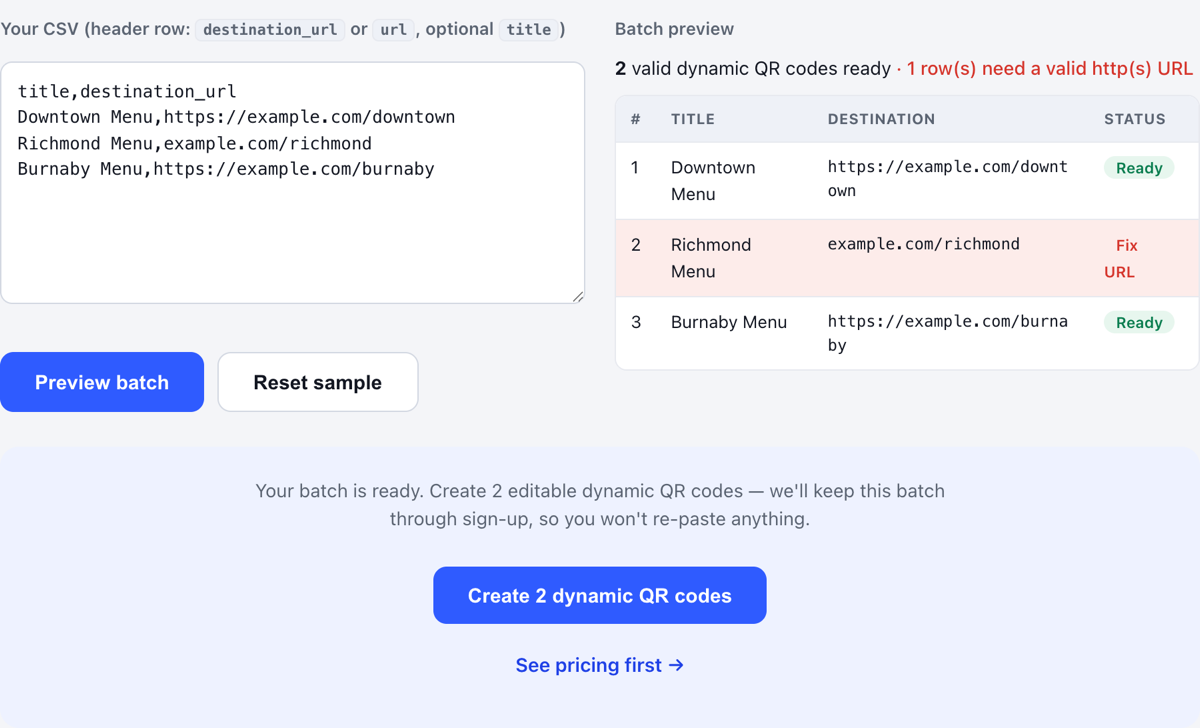
The VastQR batch preview parses the file and separates ready rows from rows that need attention, before signup and before payment. Take a deliberately broken file:
| title | destination_url | Verdict |
|---|---|---|
| Valid One | https://example.com/one | Ready |
| Valid Two | example.com/two | Ready — normalized to https:// |
| Broken Row | not-a-valid-url | Needs attention |
What changes at 10, 100 and 500 rows
The workflow is the same at every size. What changes is how much of it a human can still verify by eye.
| Batch size | What a person can verify | What has to be systematic |
|---|---|---|
| 10 rows | Every row, by reading it | Nothing — scan two or three finished codes and ship |
| 100 rows | Only the flagged rows | Consistent titles, automated URL validation, sample scanning |
| 500 rows | Only the exceptions and a sample | Naming convention, validation, active-code budget, retained source sheet, a defined process for later changes |
At 500 rows, creation is the easy part. The current VastQR plan covers up to 500 active dynamic codes, so a batch that size is also your whole allowance — worth knowing before you commit a print run to it.
Keeping the row-to-QR mapping intact
The failure that hurts months later is not a broken URL. It is losing the relationship between a spreadsheet row, a QR record, and a physical object in the world. A good mapping answers two questions without anyone scanning anything:
- Which row created this code?
- Which physical asset is this code stuck to?
- One row per QR code, always — even when destinations repeat.
- Titles that name a real-world placement, not a sequence number.
- Include an identifier your business already uses: store ID, SKU, asset number, campaign code.
- Keep the source sheet after generation; it is the project record.
- Do not repurpose a row's meaning after its code has been printed.
- Note which print job each batch went to.
The sheet and the live redirect are two different systems
Before generation, the spreadsheet is the source of truth for what you intend. After the codes are live, it is not — the redirect state is. Those two drift apart the moment somebody edits one of them.
The practical discipline is to treat the sheet as the place you prepare changes — reviewing them, getting them approved, catching the bad ones — and VastQR as the place you apply them.
What a bulk update can and cannot do
These two jobs sound alike and are not, so it is worth being exact about which one the product does:
| The change you need | How it is applied today |
|---|---|
| Many codes, one shared new destination | Select them and apply that destination once. This is what a bulk update is: a list of codes plus a single change applied to all of them. |
| Many codes, a different destination each | Edit those records individually. There is no import that reads a spreadsheet of replacement URLs and remaps existing codes row by row. |
Six ways spreadsheet QR projects go wrong
Using a formula when the job needed dynamic codes
An in-cell formula renders an image. It does not give you a managed redirect, so the destination is fixed the moment it is printed.
Assuming “bulk generation” means “bulk management”
Producing 500 images is one step. Naming them, finding one later, changing its destination, pausing it and seeing whether it is used are the other five.
Publishing a bad URL at scale
A single wrong column becomes hundreds of broken printed codes. Validate first.
Deleting the source sheet after generation
It holds the project context — who each row was for, what it was meant to do, which print job it went to. That context is unrecoverable once it is gone.
Expecting a Sheets edit to reach the live code
Two systems, no wire between them. See the section above.
Losing the physical mapping
If nobody can say which sign carries which code, every future change becomes a walk-around-and-scan exercise.
Frequently asked questions
Can Google Sheets generate QR codes?
Does VastQR sync directly with Google Sheets?
What columns do I need?
Can I create hundreds of QR codes from one spreadsheet?
Can I change destinations after printing?
Does editing a cell in my sheet update the live QR code?
Why validate URLs before generating?
Already have the spreadsheet?
Paste or upload the CSV, see exactly which rows are ready and which need attention, and preview the batch before you pay for anything.